Make Online Booking Your Own: Customisable Colours in Praktika
Your online booking page is often the first thing a new patient sees of your practice. With our latest update, that changes: you can now style your online booking page to match your clinic’s brand, choosing from a set of ready-made colour themes or building a fully custom palette yourself.
What’s new
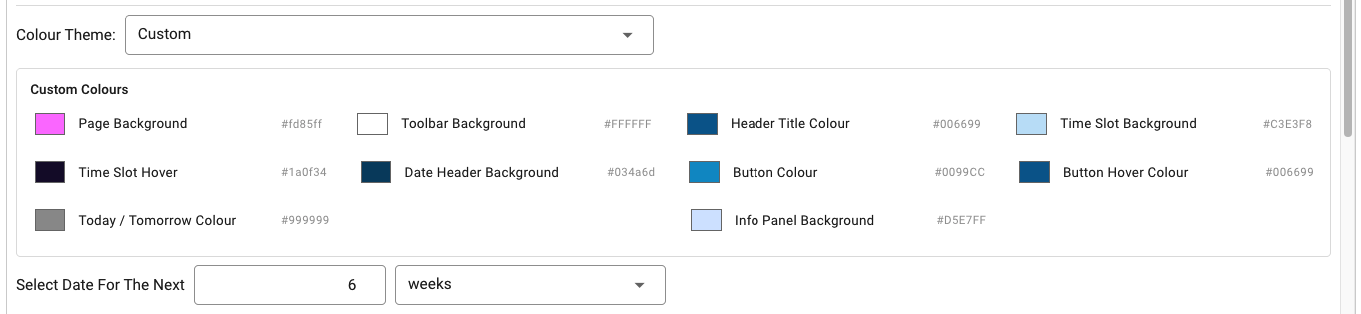
The Online Booking settings now include a Colour Theme option. You can pick one of several preset themes Or choose Custom to take full control. Custom mode lets you set ten individual colours across the booking page:
- Page Background: the main backdrop of the booking page
- Toolbar Background: the bar across the top of the page
- Header Title Colour: the colour of the page heading
- Date Header Background: the strip behind each date
- Time Slot Background: the colour of available appointment times
- Time Slot Hover: how a time slot looks when a patient points at it
- Button Colour and Button Hover Colour: your call-to-action buttons, at rest and on hover
- Today / Tomorrow Colour: highlights the nearest available days
- Info Panel Background: the panel that holds your practice information and messages
How to set it up
- In Praktika, go to Management > Online Booking.
- On the General tab, find Colour Theme and open the dropdown.
- Pick a preset theme, or choose Custom to reveal the Custom Colours panel.
- Click any colour swatch to open the colour picker. Drag to choose a shade, enter exact RGB values, or use the eyedropper to sample a colour straight from your screen, such as your logo or website. Each colour’s hex code is shown beside its swatch, so it’s easy to match your brand guidelines.
- Click Save. You’ll see a confirmation that your settings have been saved, and your booking page will show the new look.
Why it matters
- A consistent brand experience. Patients moving from your website to your booking page see the same colours, so the journey feels seamless and trustworthy.
- Stand out. A booking page that looks like your practice, not generic software, leaves a stronger impression.
- Better readability. Tune button, hover and time-slot colours so the important actions are clear and easy to find.
- No developer needed. Everything is done in a few clicks inside Praktika.
Tips for choosing your colours
- Start from your logo or website colours. The eyedropper makes this quick.
- Keep enough contrast between text and backgrounds so the page stays easy to read on phones and for patients with low vision.
- Make your Button Colour the boldest colour on the page so “book” actions stand out.
- Not sure where to start? Try a preset theme first, then switch to Custom and fine-tune from there.
Try it today
Customisable booking colours are available now for all Praktika practices using Online Booking. Head to Management > Online Booking to give your booking page a fresh look. If you have any questions, our support team is happy to help.

